Select Render Walk → Settings, from the side menu. Go to tab Advertisements.
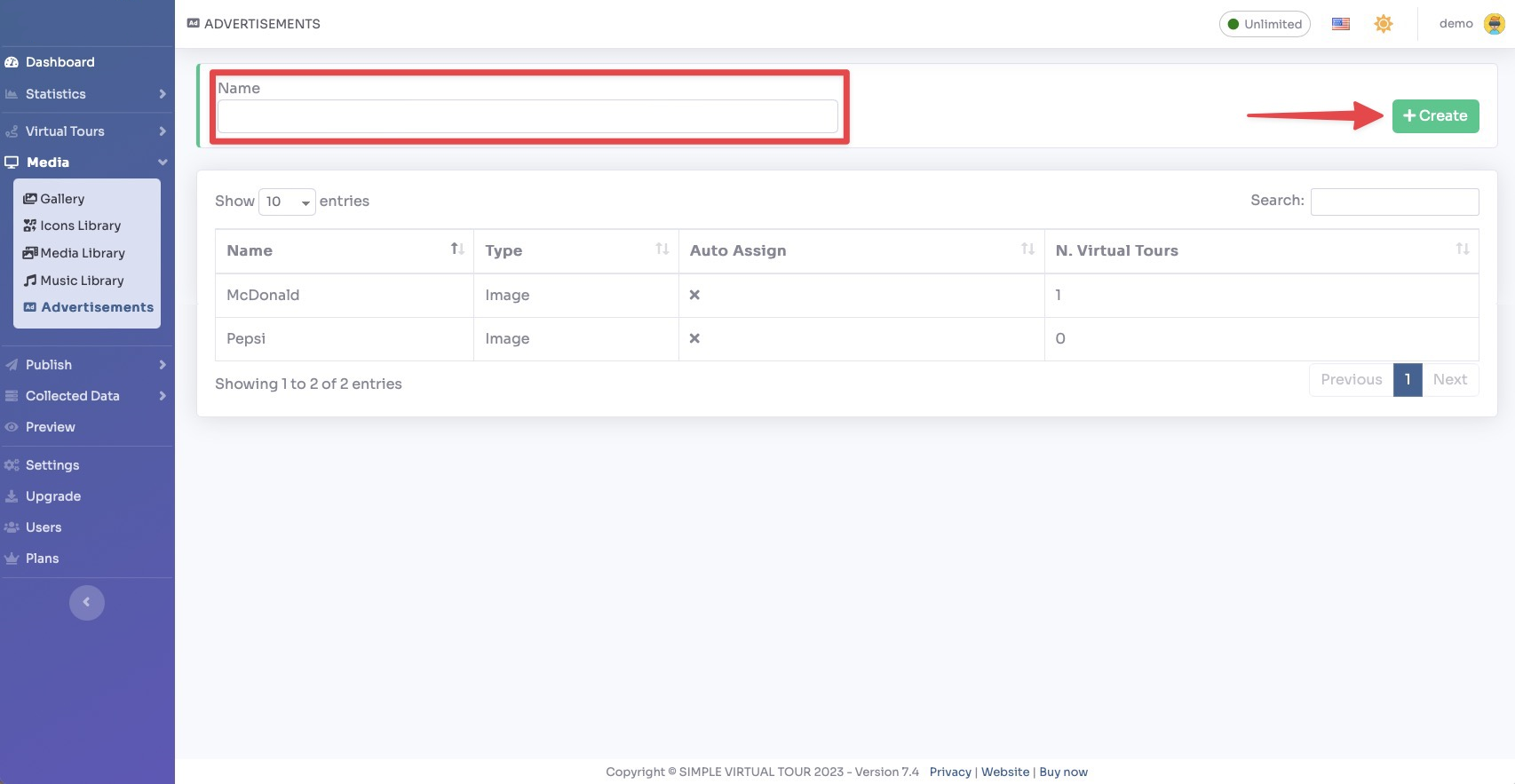
You can configure advertisements to display within your virtual tours. The following options are available:
- Enable Advertisements — Toggle to enable or disable advertisements globally
- Ad Type — Choose between an image banner or a custom HTML/JS ad code (e.g., Google AdSense)
- Ad Position — Set where the advertisement appears within the tour viewer
- Ad Image — Upload a banner image to be displayed as the advertisement
- Ad Link — Set the URL that the user will be directed to when clicking the advertisement
- Ad Code — Insert custom HTML/JS code for third-party ad networks
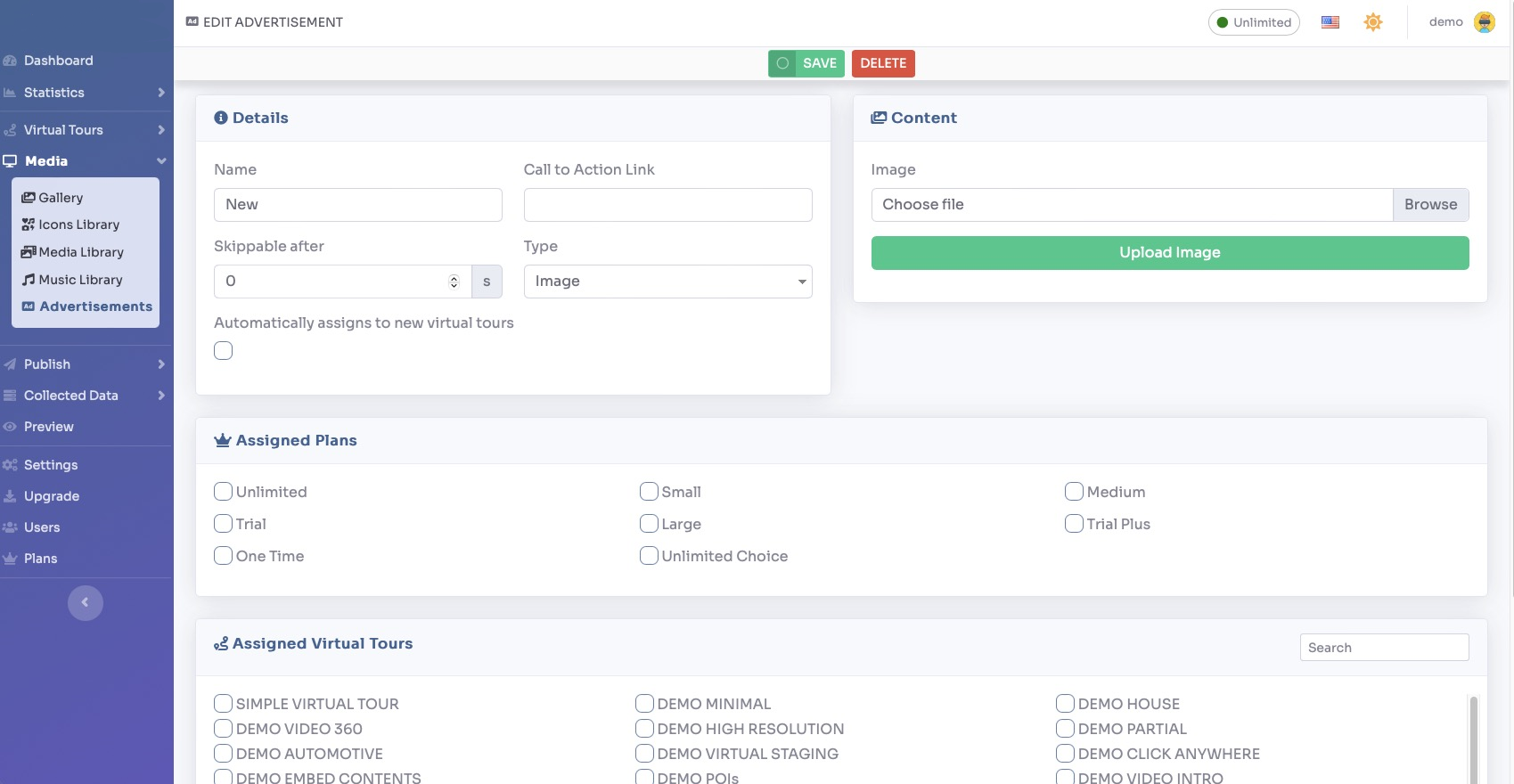
Depending on the type you select, upload the content of your advertisement.

You can assign advertisements to specific plans by selecting the "Assigned Plans" option. Alternatively, you can assign them to specific virtual tours by selecting the "Assigned Virtual Tours" option.
Click Save on top of the page.
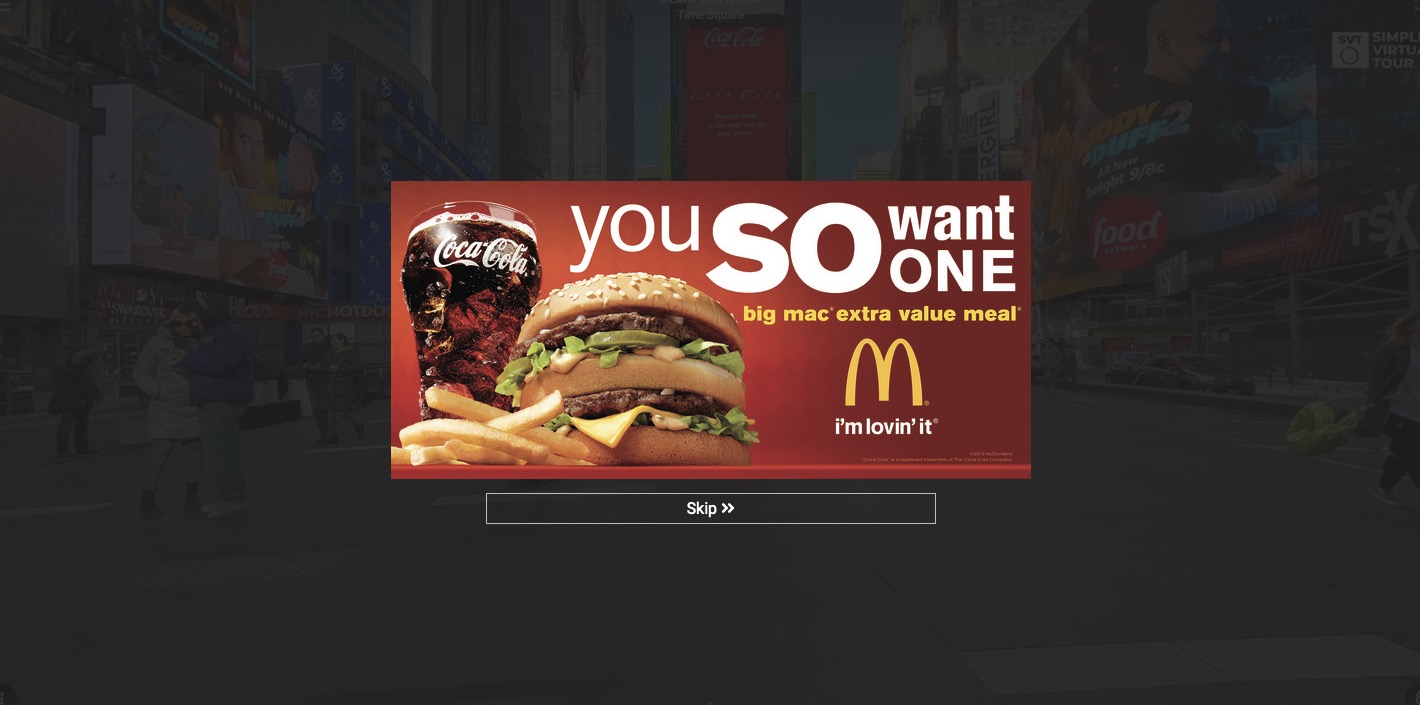
The advertisement will be shown on the tour as follows: