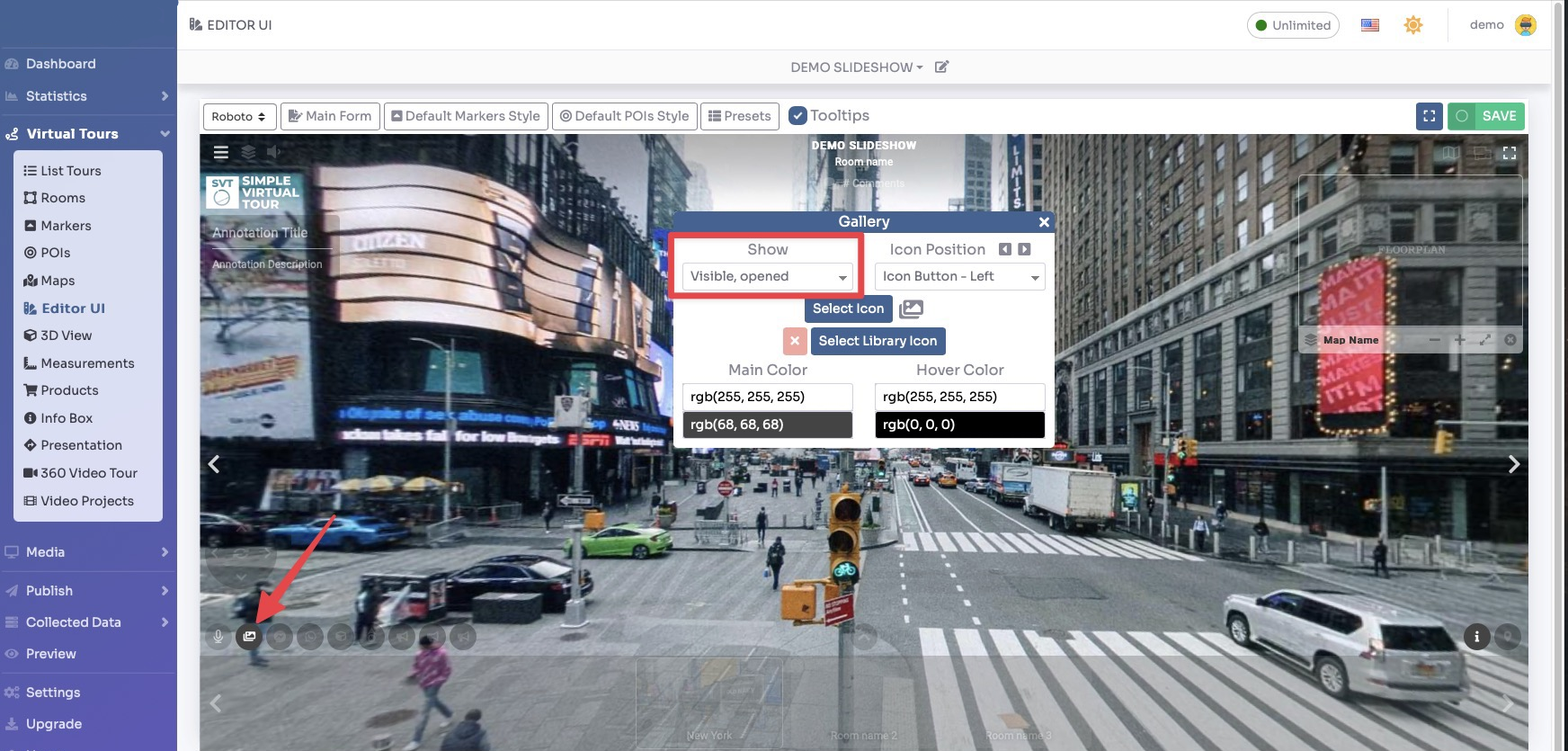
Here you can upload photos related to your Tour and present them as Gallery of Images or Video Slideshow.
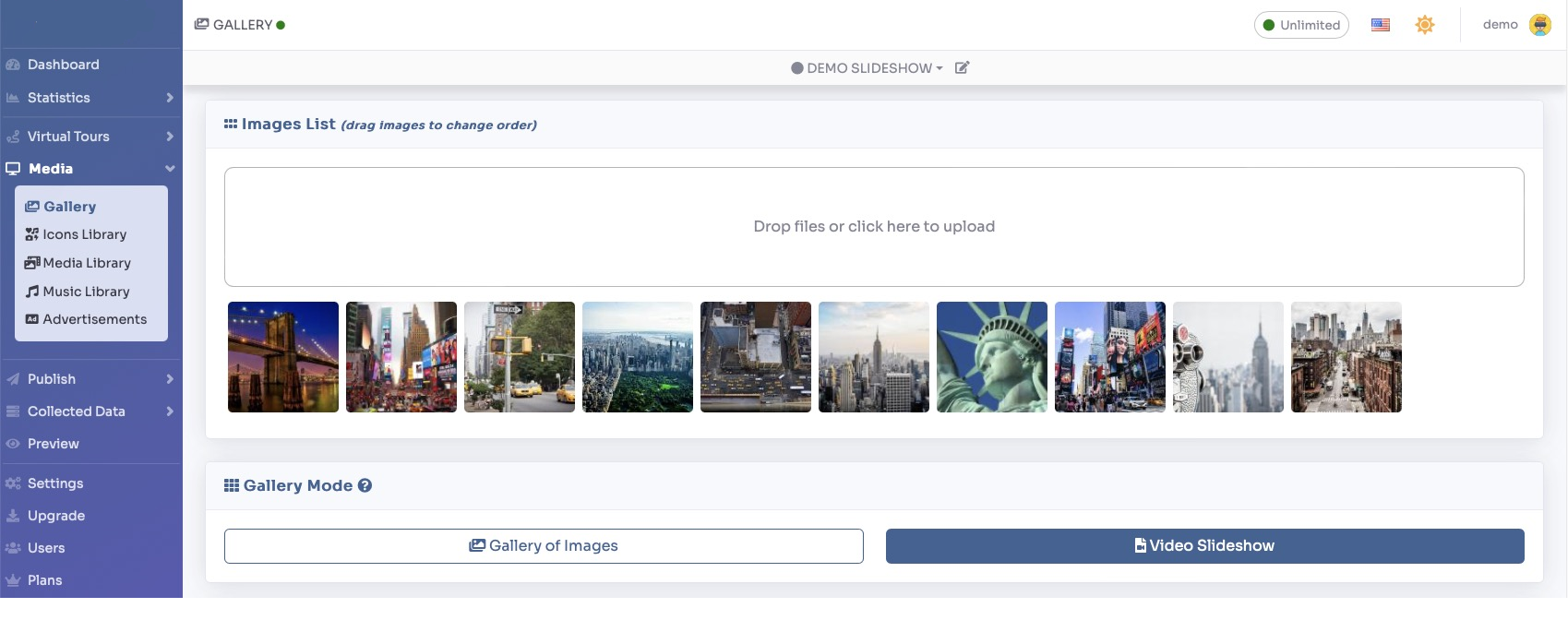
In Gallery of Images you can select Transition animation, if and where Thumbnails of pictures in gallery should be presented, toggle Autoplay and display Duration of each slide.

After you've made your changes click on Save.
To generate a video slideshow within the same images scroll down to Video Slideshow section.
Now you can choose settings for your generated Video:
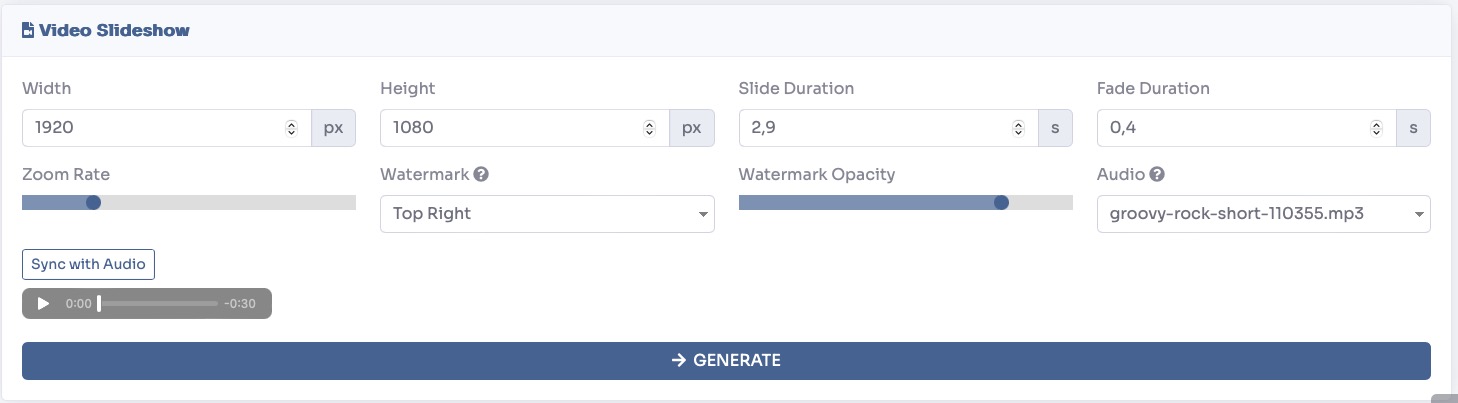
You can set the Dimensions of the video, Duration of each slide, Zoom Rate and add Watermark or Audio track.
Once you've set the properties of the video click Generate to get your video.
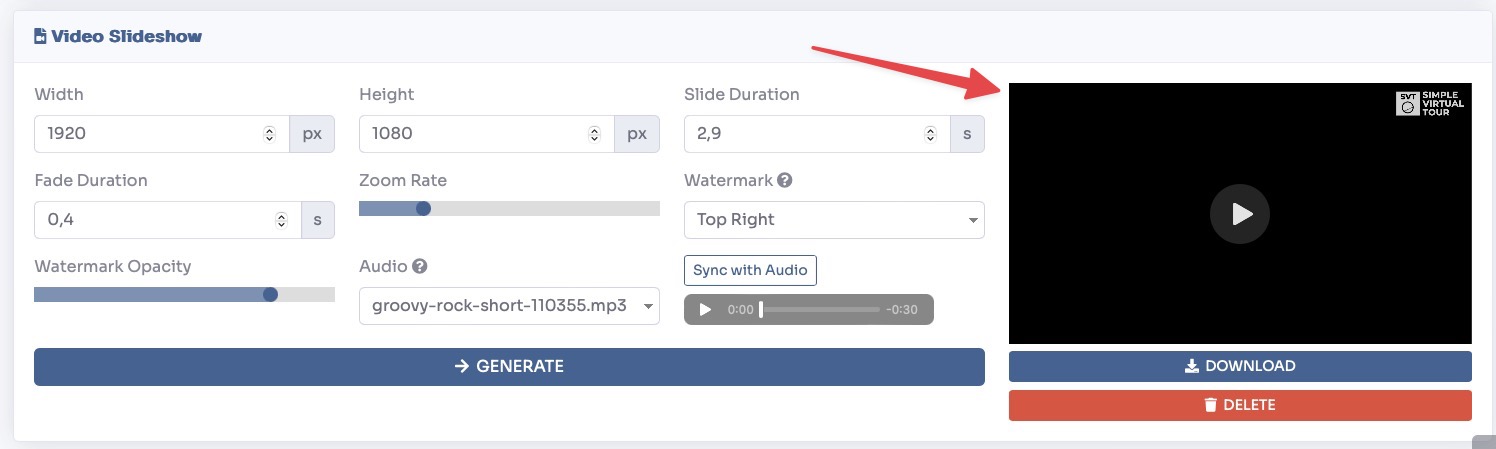
After the video has been generated it will be shown to the right of this section and you will be able to download it.
You can change the Gallery Mode by clicking on the one you want to appear on your tour.

You can customize and enable tour gallery viewing in the Editor UI.