You can add a point to your Virtual Tour to be clickable and display a renderer of a point clouds view.
Point clouds need to be converted with Potree Converter.
A folder containing the necessary files will be created.
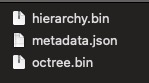
Create a ZIP file containing these files.
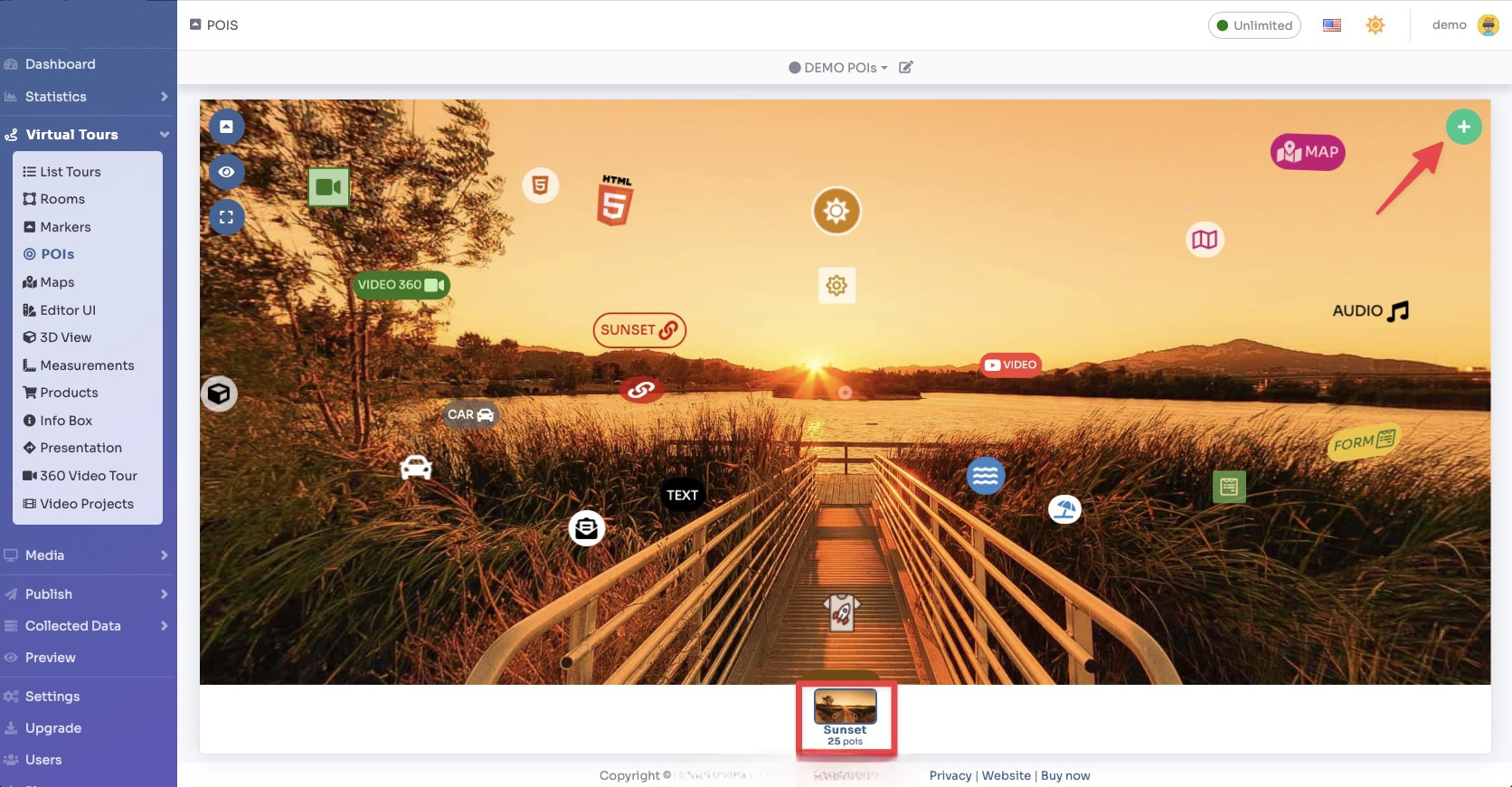
Select Render Walk → POIs from the side menu.
Select the room you want to add Point Clouds to and click the "+" button on the top right.
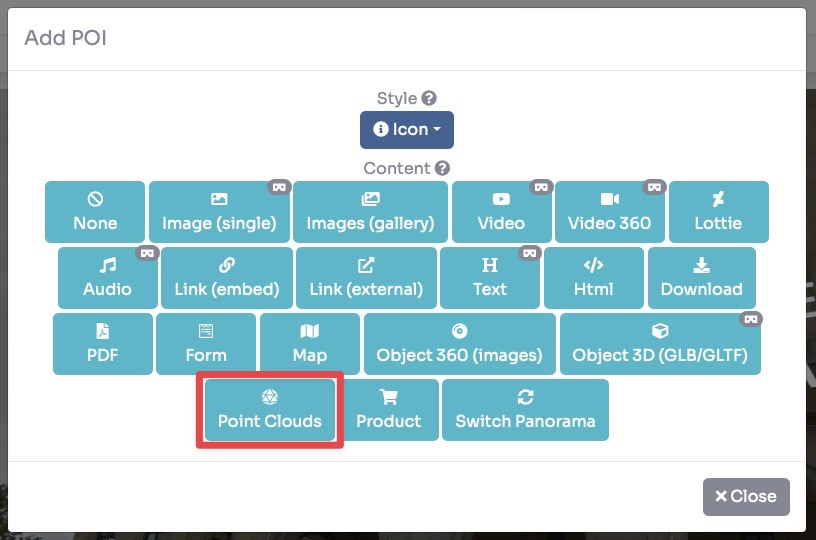
Select the style of the POI and click Point Clouds as Content.
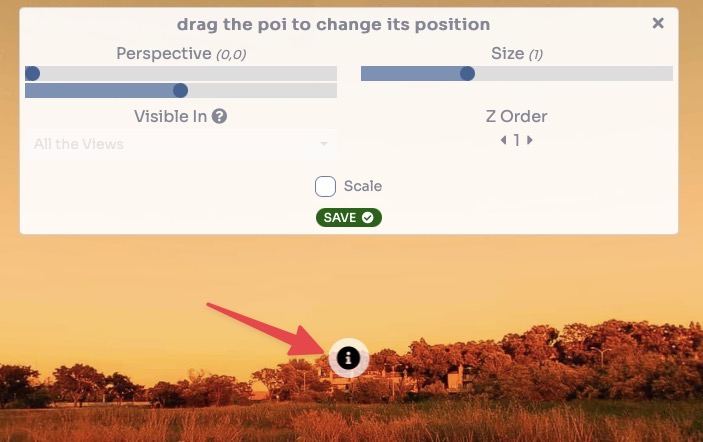
Drag the POI's icon to change its location and then click Save.
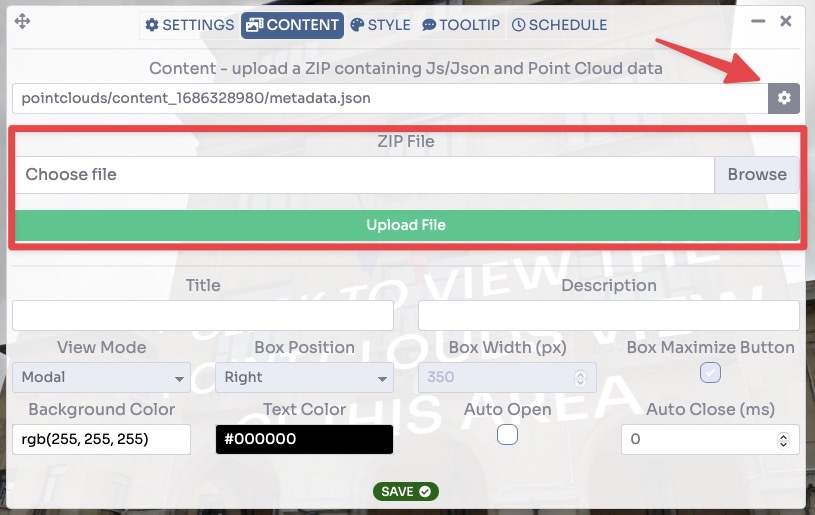
Upload the previous ZIP file generated and click on the gear button to open the preview where you can change the settings.
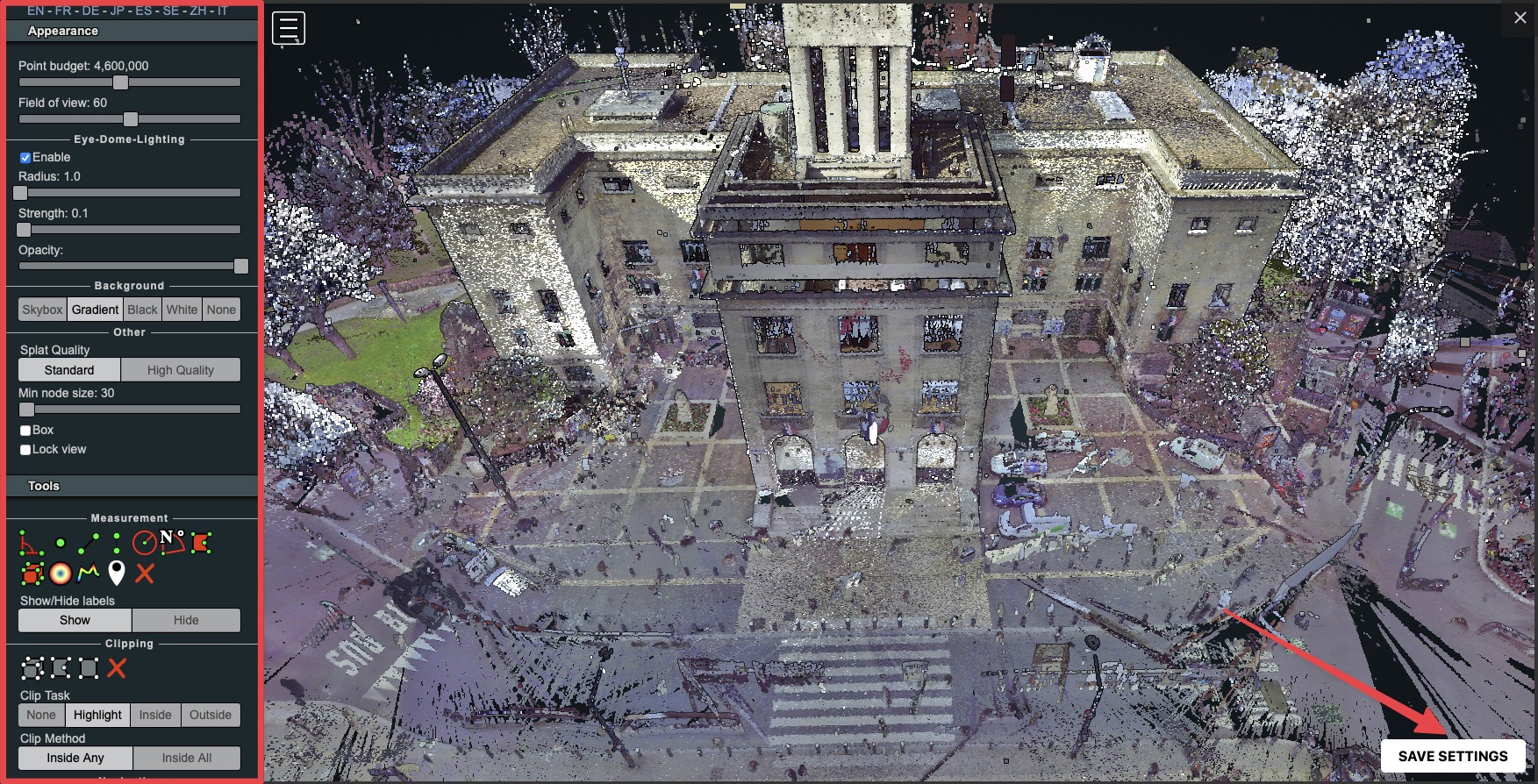
Once you have changed the view and settings, click on the 'Save Settings' button at the bottom right.
Click Save.