You can add a point to your Virtual Tour to be clickable and display a title and description element in panorama view.
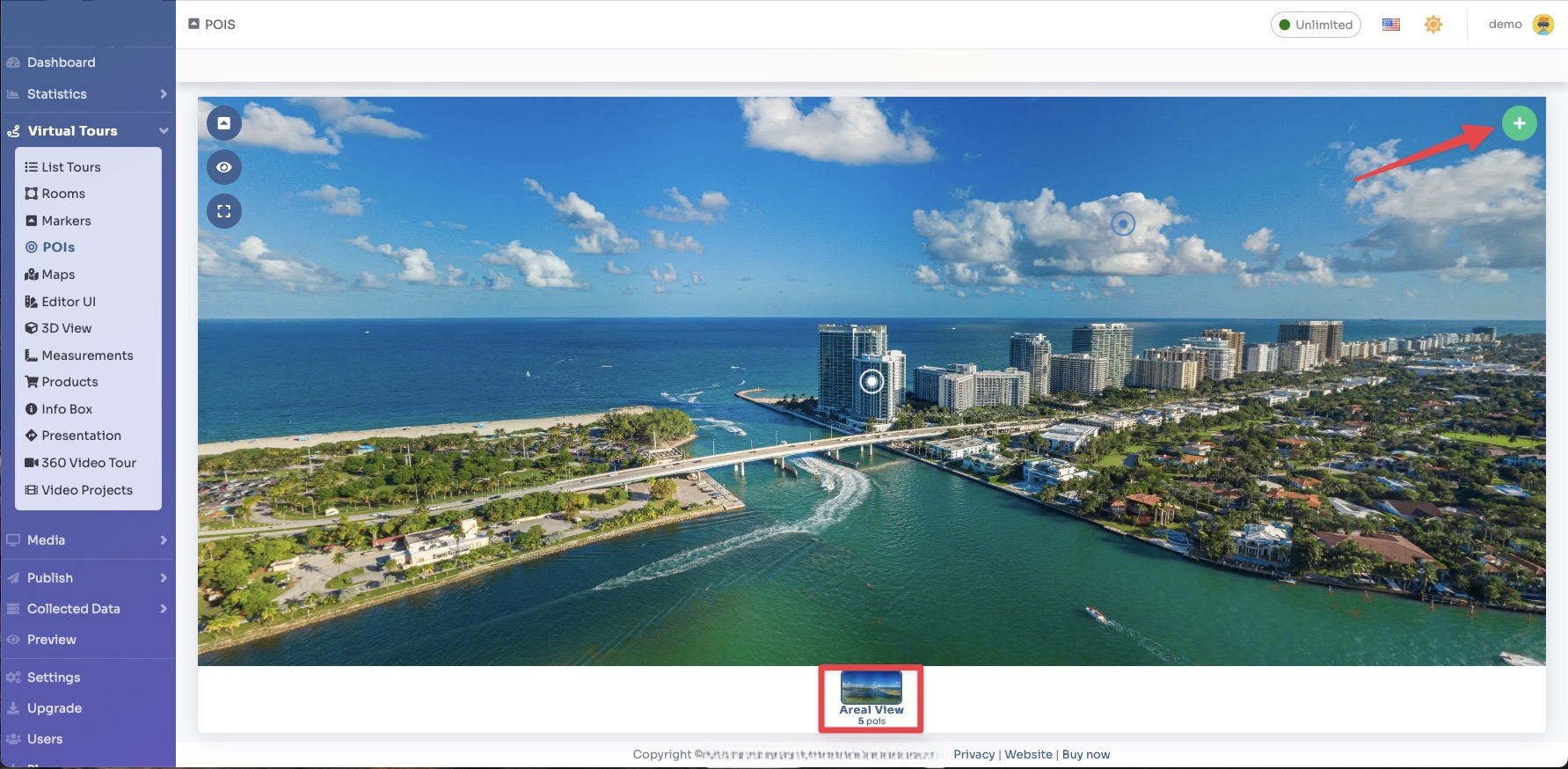
Select Render Walk → POIs from the side menu.
Select the room you want to add the text callout to and click the button "+" on top right.
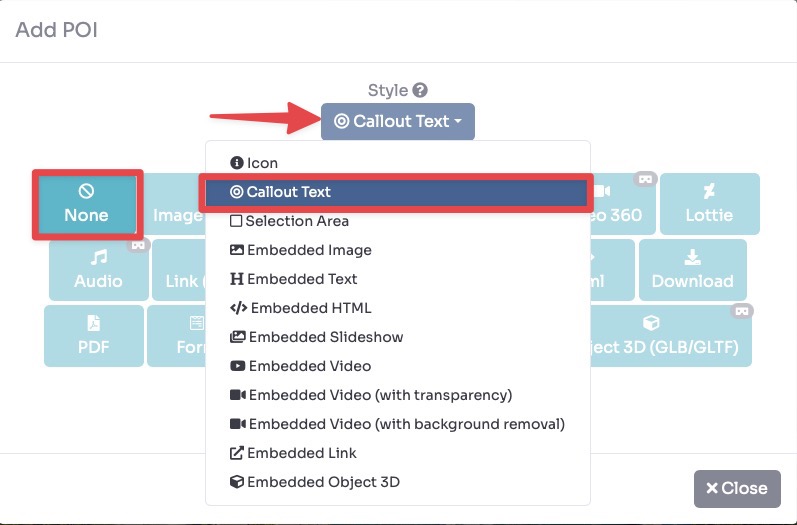
Select Style → Callout Text and click "None" button into Content.
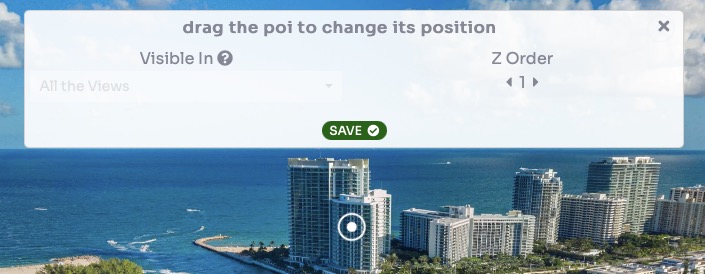
Drag the POI's icon to change the location of the Callout text and then click Save.
You can edit a variety of settings for callout text: text to be displayed, its size and color, background and display option for it to open on.
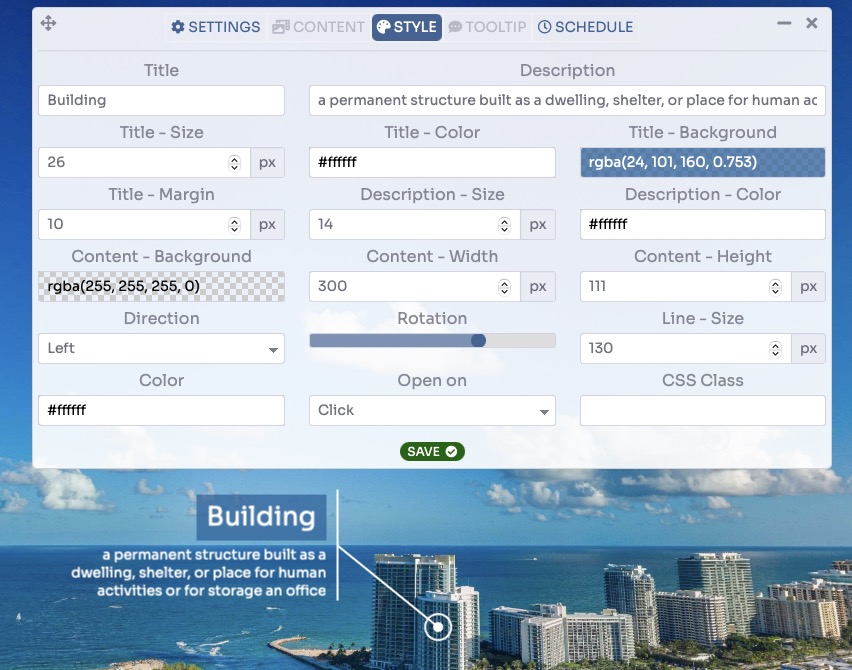
After you've configured the content you want to be displayed after the user clicks the callout, click Save.
You can view a live preview of callout text in this demo.