Select Render Walk → Rooms from the side menu and click the Edit button on the desired room.
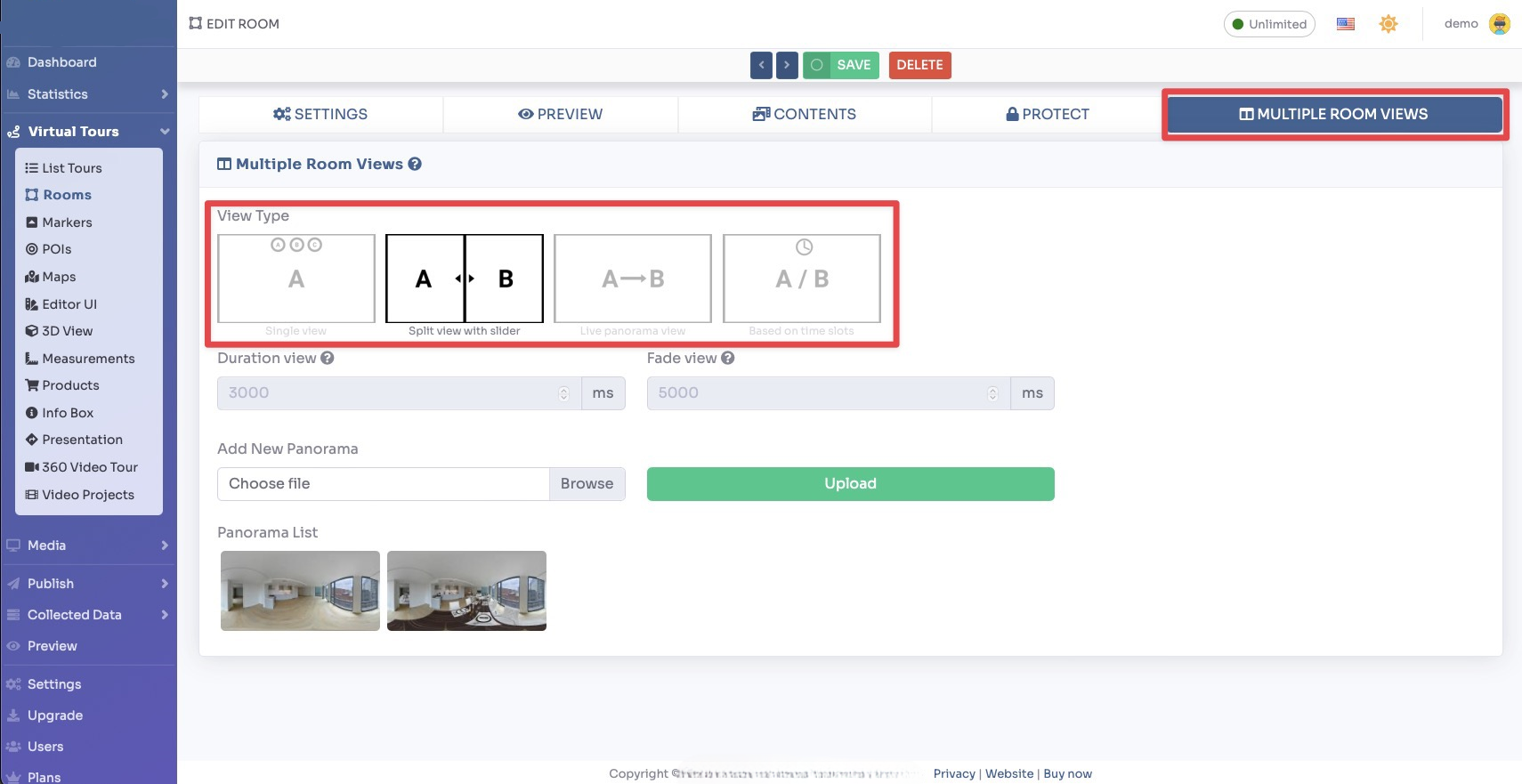
Go to tab Effects.
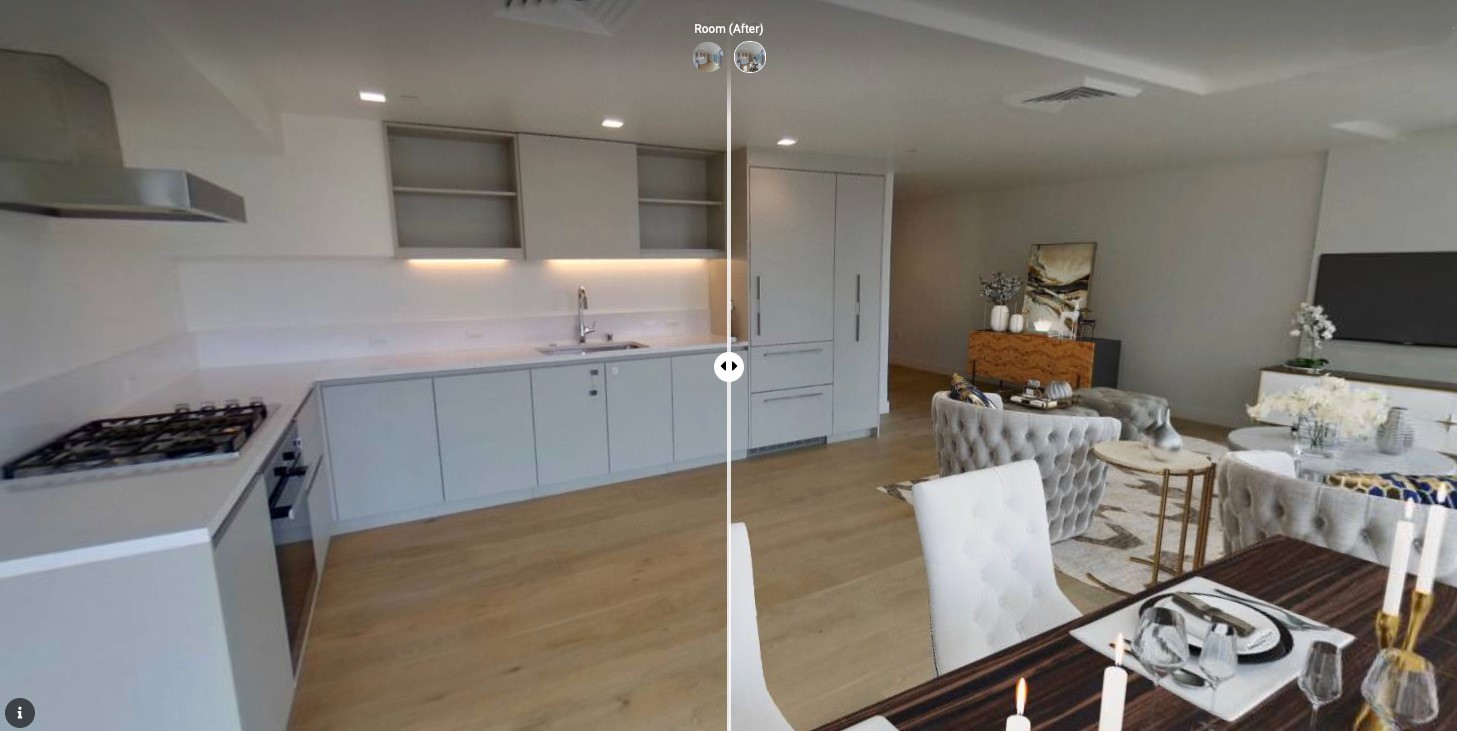
You can apply the following effects to the panorama:
- Snow — Adds falling snow particles over the panorama.
- Rain — Adds a rain effect over the panorama.
- Fog — Adds a fog overlay to create an atmospheric effect.
- Fireworks — Displays animated fireworks over the panorama.
- Confetti — Adds colorful confetti particles to the panorama.
- Sparkle — Adds sparkling light effects to the panorama.
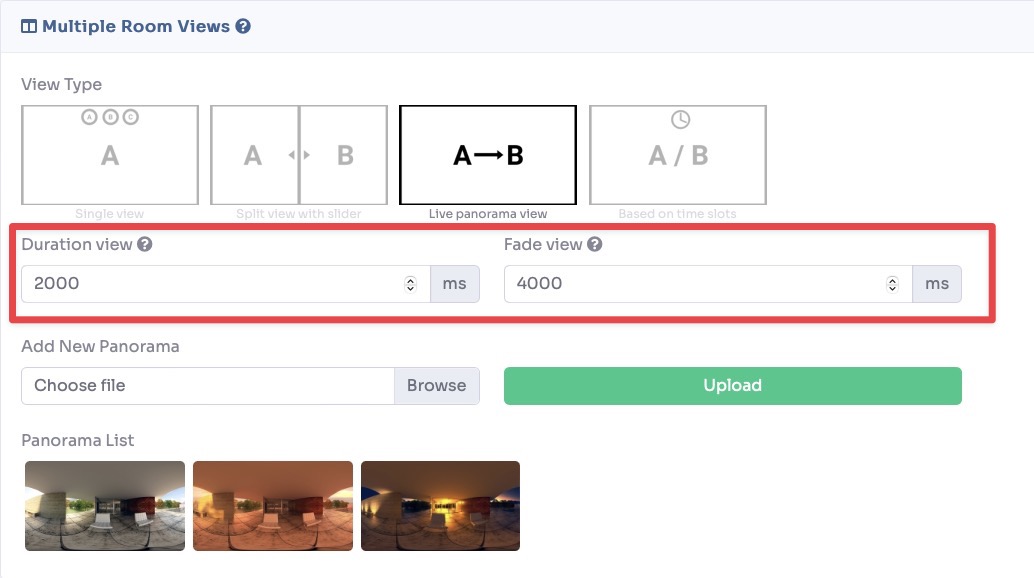
Blur Effect
You can also apply a Blur effect to a specific area of the panorama to hide sensitive information (such as faces, license plates, or private details).
In the Blur section, click + Add Blur Area, then draw a rectangle on the panorama preview to select the area you want to blur.
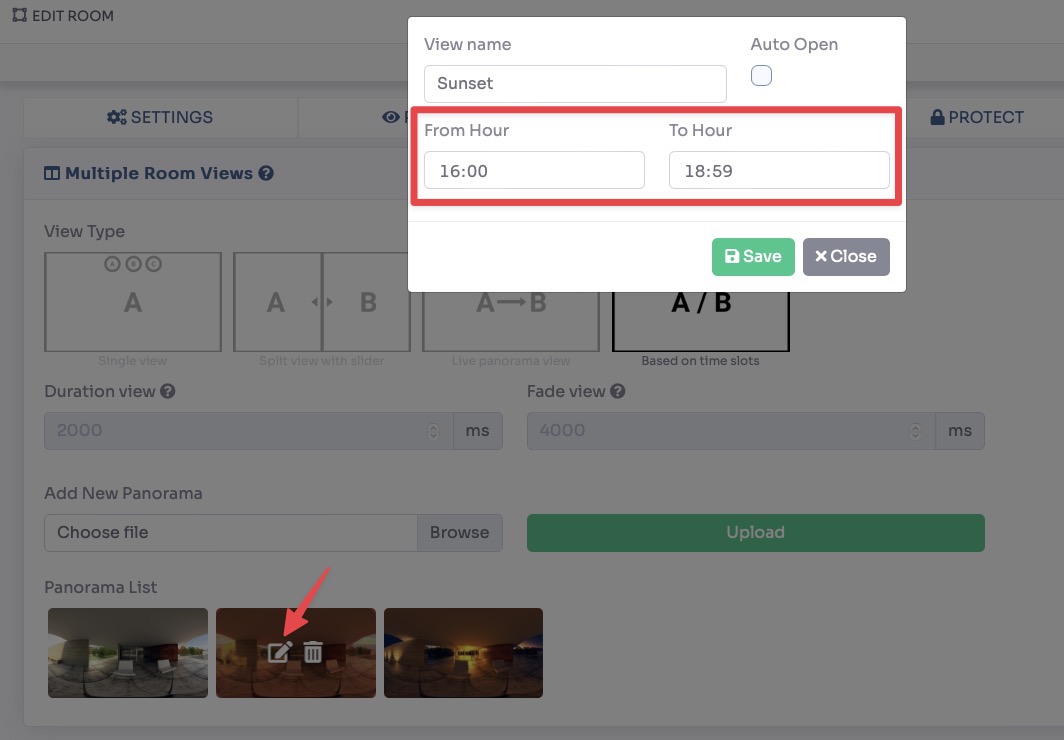
After you have configured your effects and blur settings, click Save at the top of the page.