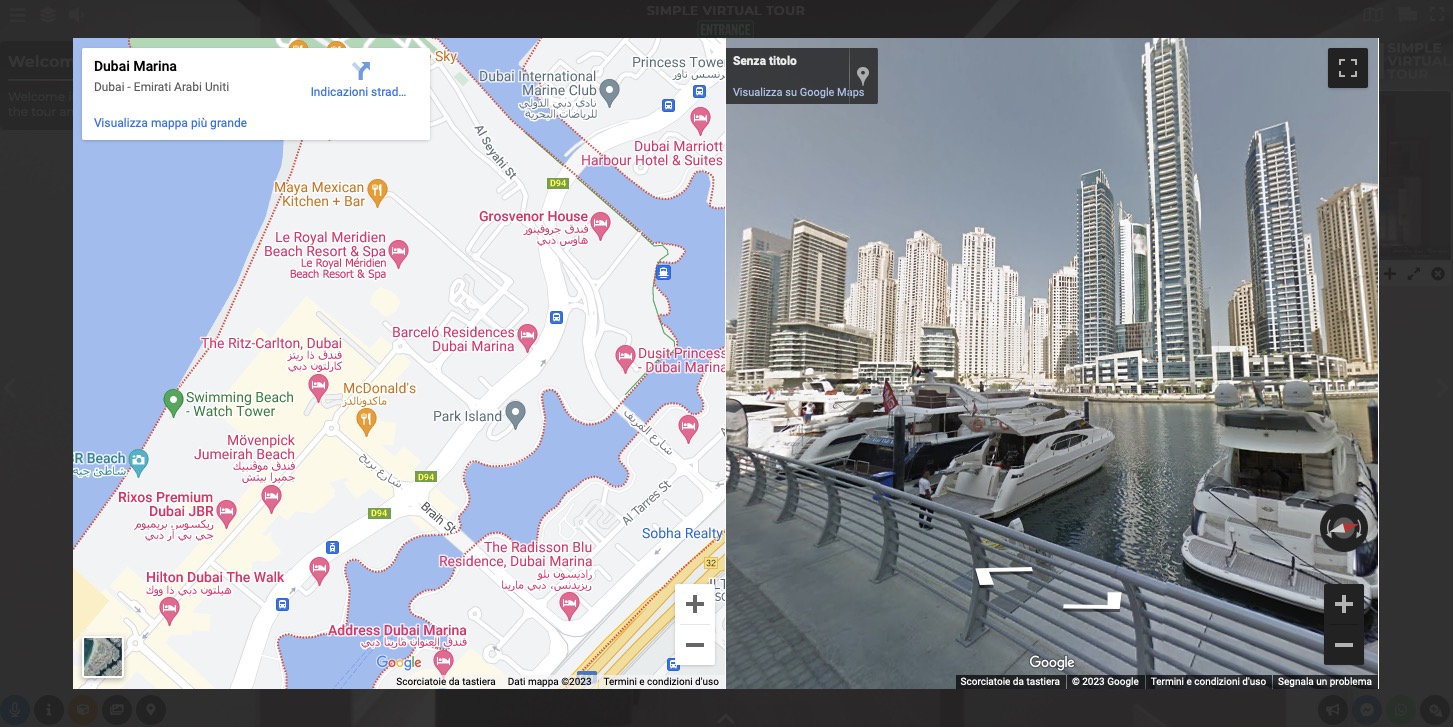
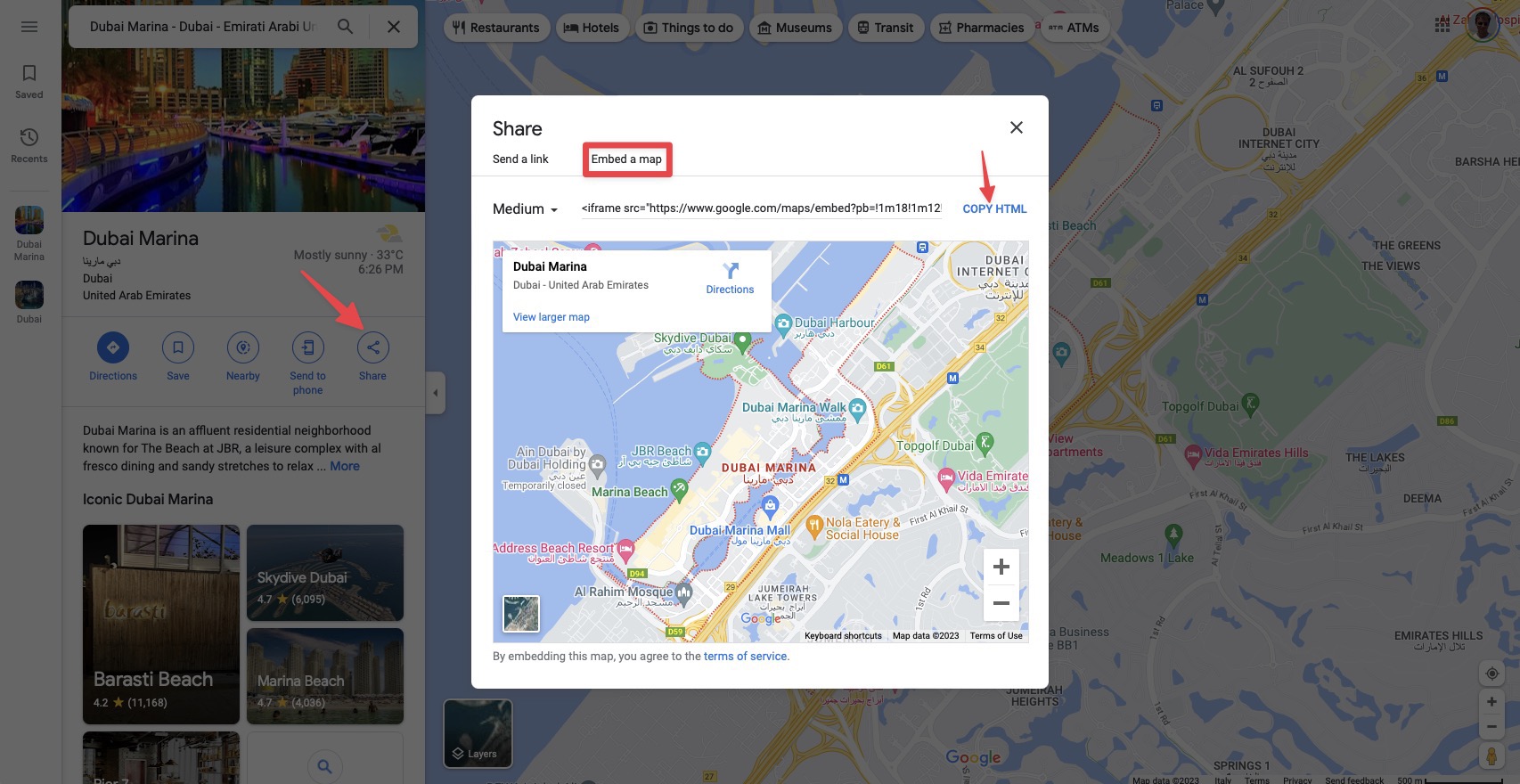
Maps embed code
Search the location on Maps, click on Share, go to tab Embed Maps and click Copy HTML.
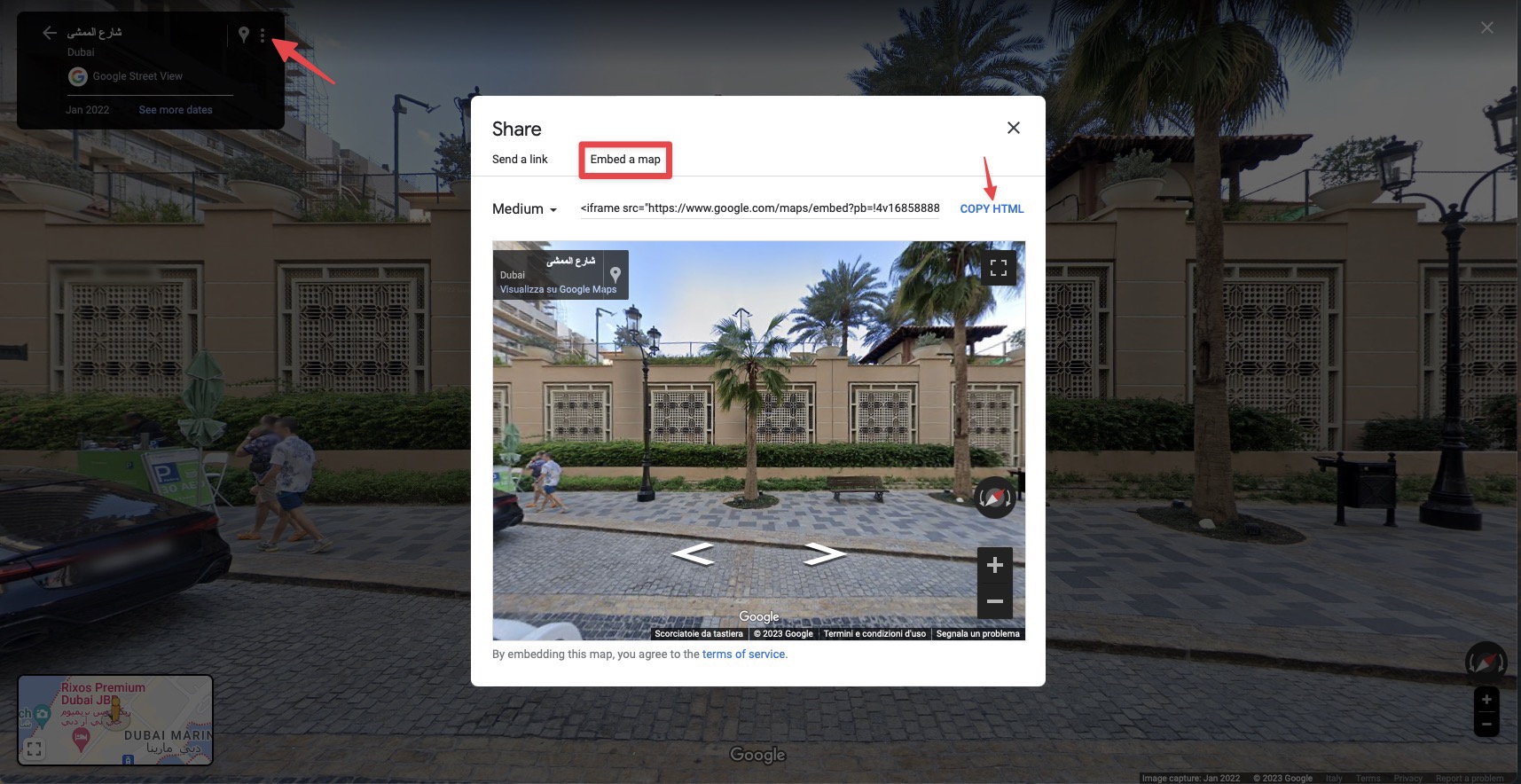
Street View embed code
Search the location on Maps → enter into Street View mode, click on the 3 dots on the top left corner, go to tab Embed Maps and click Copy HTML.
Now you can insert these 2 codes inside the Tour or as a POI.
TOUR
Select Render Walk → Editor UI from the side menu.
Click on the Location icon and then click on the gear button.
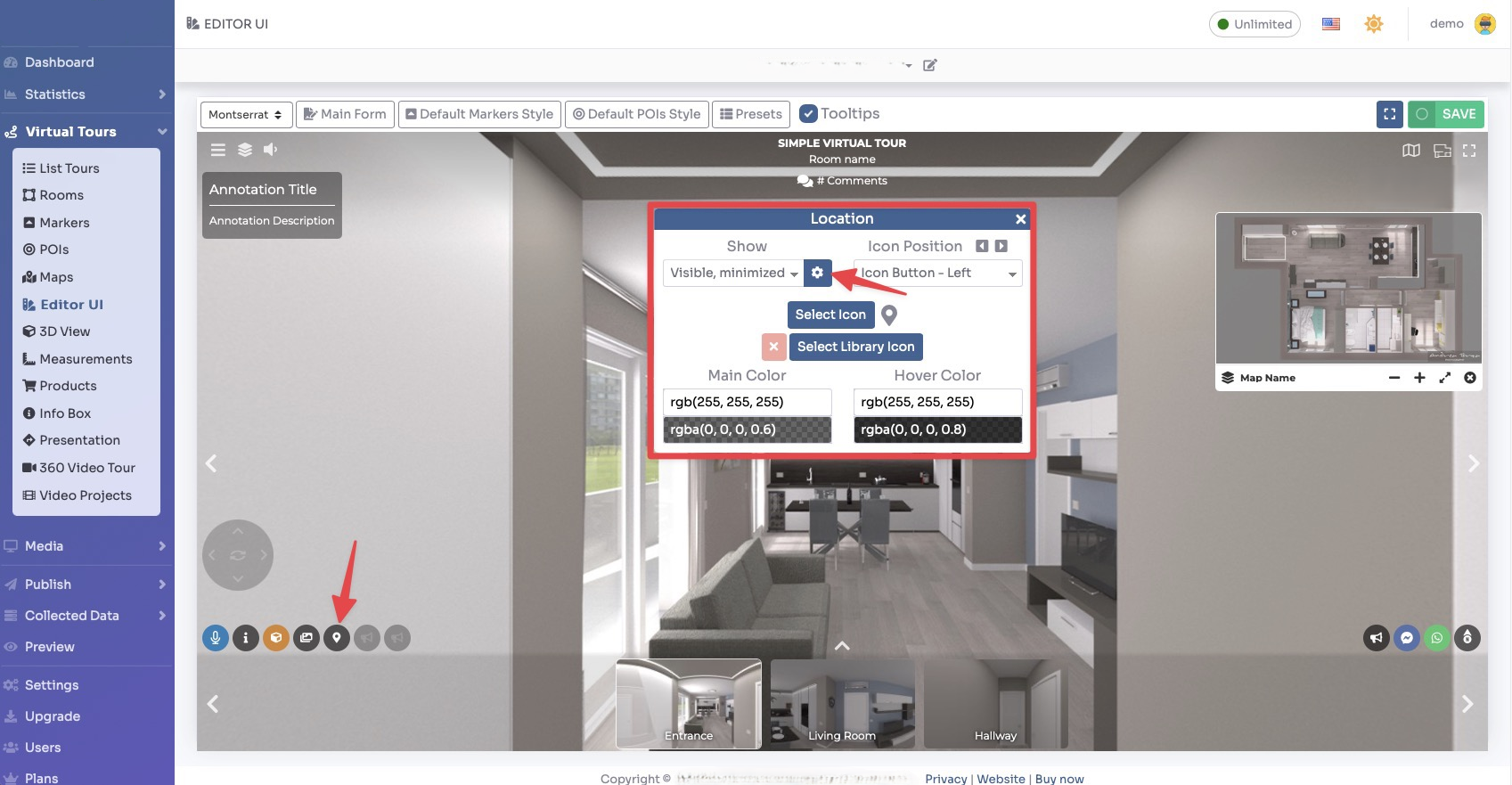
Insert the embed codes here.
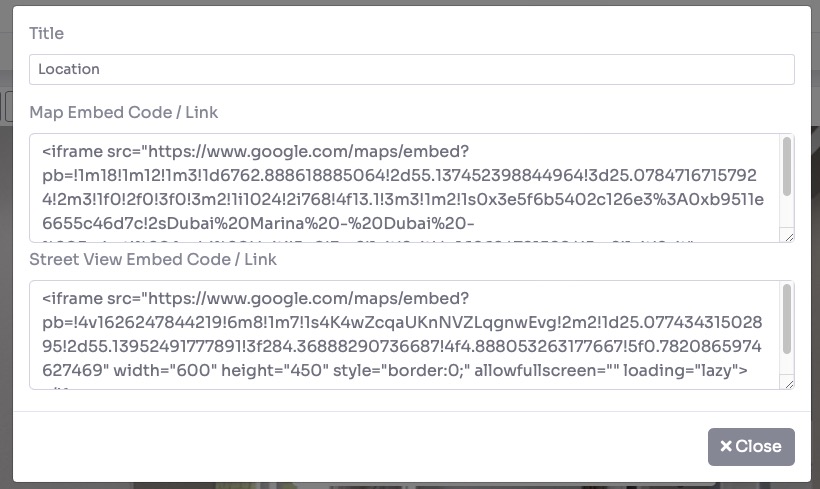
Click Close and then click Save on top right corner of the page.
POI
Select Render Walk → POIs from the side menu.
Select the room you want to add the map to and click the button “+” on top right.

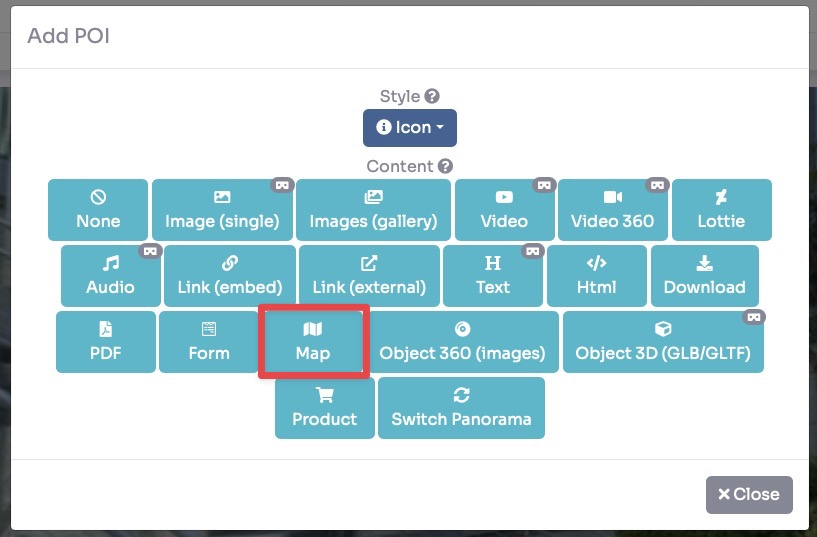
Select the style of the POI and click Map as Content.
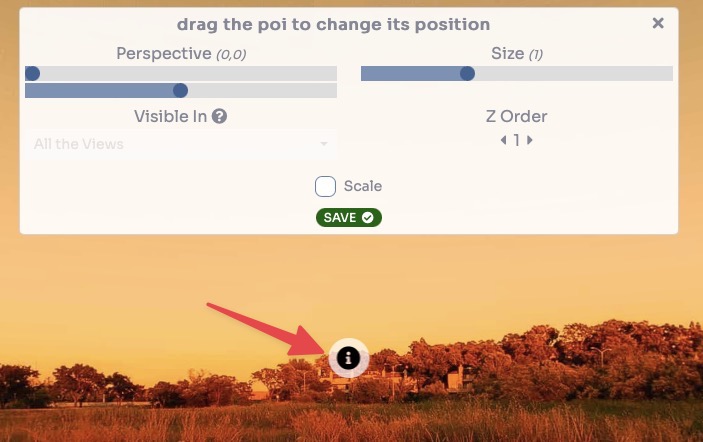
Drag the POI's icon to change its location and then click Save.
Insert the embed codes inside the content tab.

Click Save.
The result of the Google Map / Street View is as follows: