Select Render Walk → Editor UI from the side menu.
Here you can see all the elements currently visible in your tour and modify them.
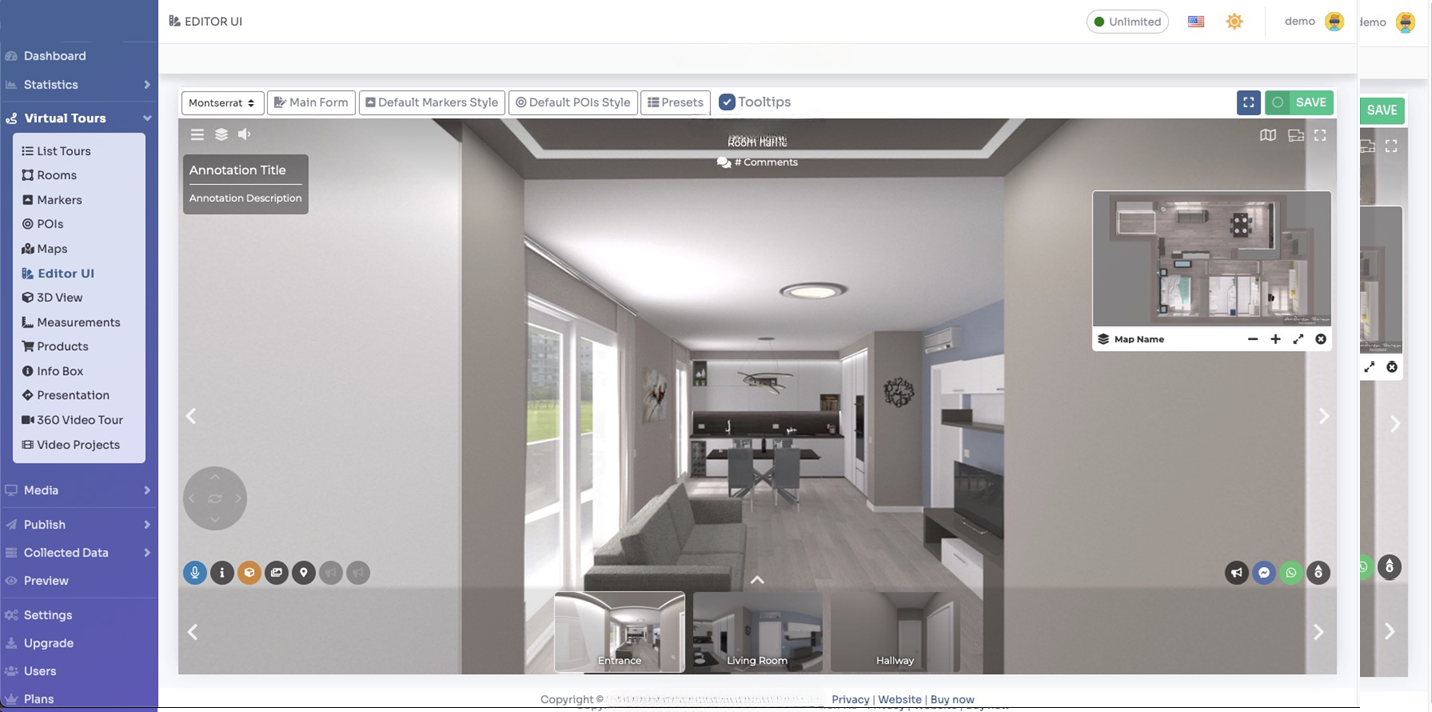
Click on any of the UI elements to edit them; you can enable/disable their visibility and change their appearance.
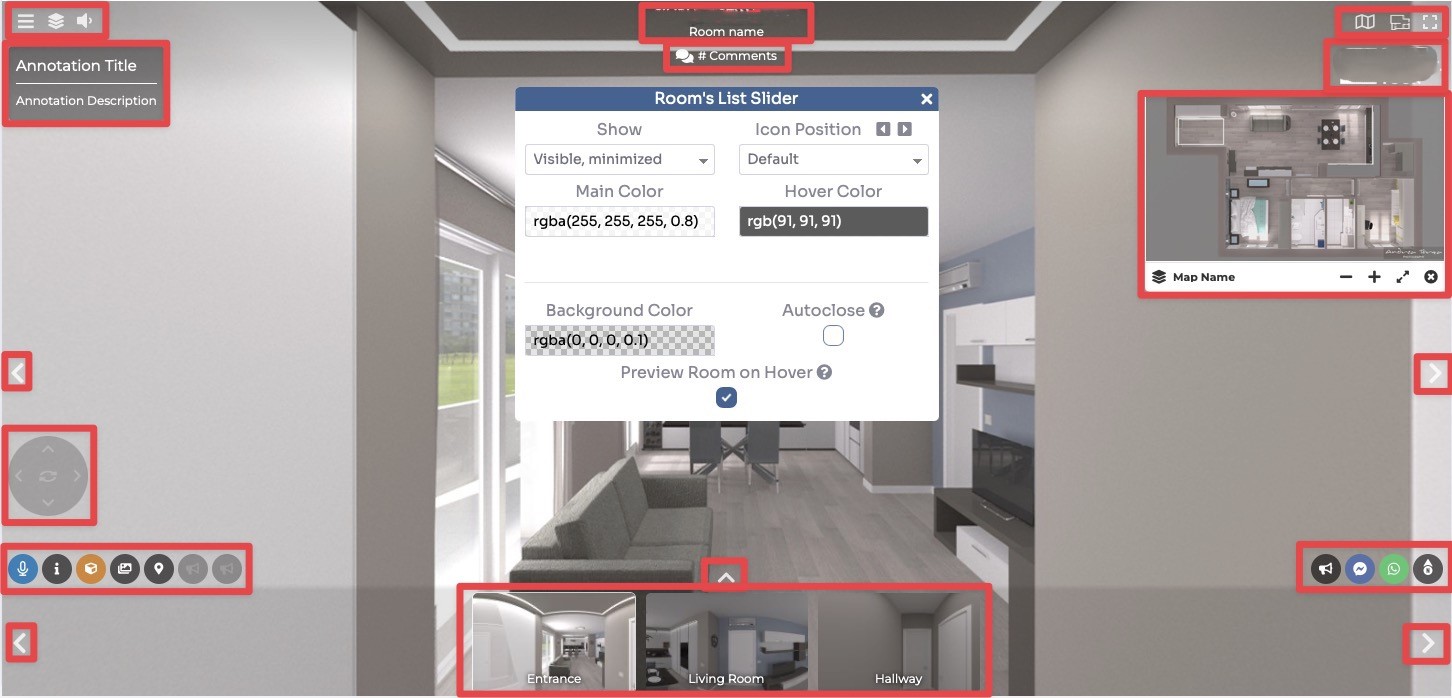
On top of the edit menu you can select to modify environmental elements like:
- Font — Change the general font of the whole tour
- Main Form — Set the parameters of the general form
- Default Markers Style — Set the style parameters of the new Markers
- Default POIs Style — Set the style parameters of the new POIs
- Presets — Save and load UI presets
- Tooltips — View or hide the tooltips of the elements when hovering them

After changing the UI click Save in the top right corner of the page.